
Scratch Workshop
Scratch ·Workshop 4: Intro to Scratch!
What is Scratch?
Scratch is what I would call a block based programming language. A single block can contain a instruction to say “hello” or to walk 5 blocks. When you drag and connect these blocks together, you can create a list of instructions to give to the community and that’s what writing code is all about! It’s an interactive and fun way to code! You can create digital stories, games, and animation with Scratch.
Here’s the Scratch website: https://scratch.mit.edu/
Signing up for Scratch
First, we’ll set up an account with Scratch so you can come back to your projects anytime!

Next, click the create button to create your very first project!

Next, we’ll go through a tutorial to show you what you can do with Scratch! A lot of the steps are taken from Stanford’s Introduction to Computer Science class, specifically this lesson: https://cs50.harvard.edu/x/2025/weeks/0/.
Making the cat say, “Hello, world!”
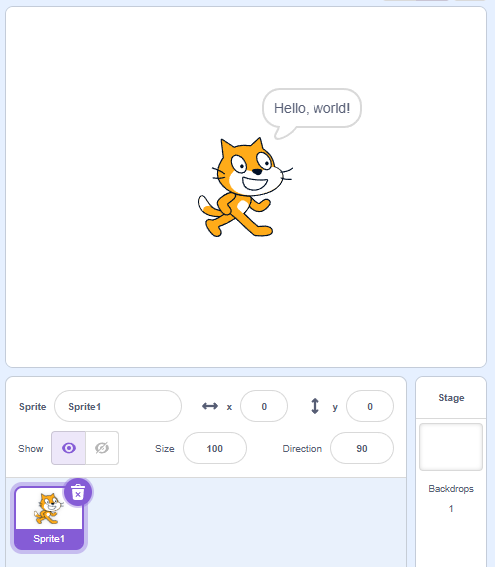
You should see a green flag and a red stop button above the cat.

The green flag stands for GO and the red stop stands for STOP. We want to make it so when we click the green flag, the cat says “hello, world”. Go to the Events section and drag this block into the center:
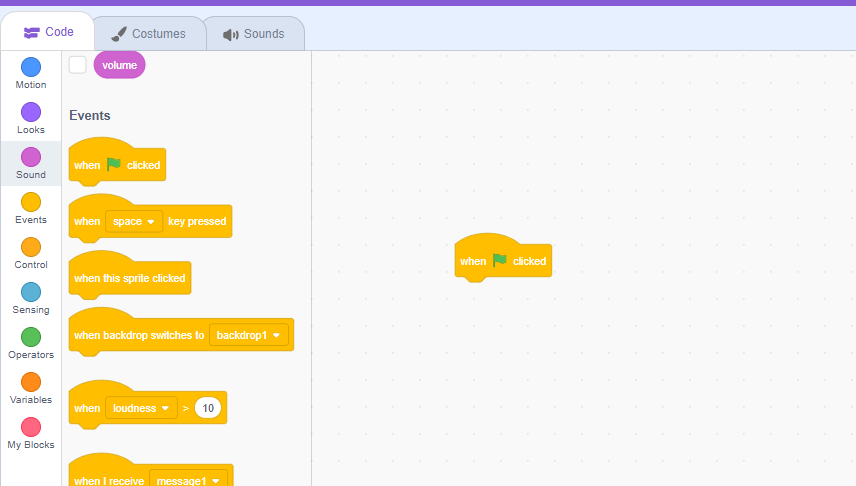
Next, go to the Looks section and drag this block right underneath the first one:
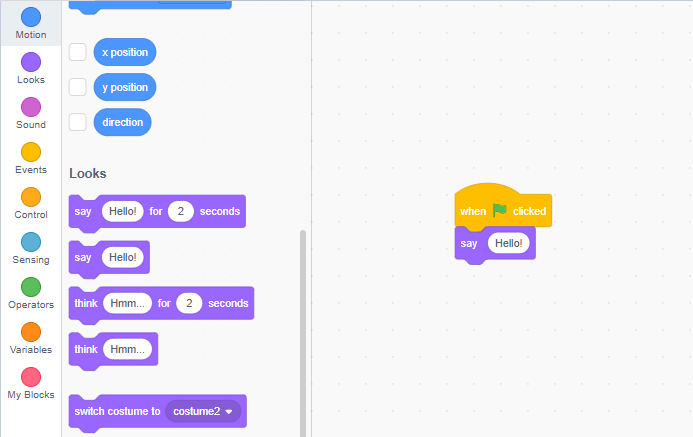
We’ll change “Hello!” into “Hello, world!”
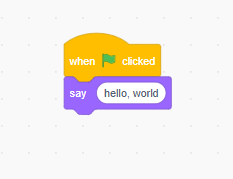
Press the green flag, and your cat should say “Hello, world!”
Teaching the cat your name!
Let’s remove all of the blocks except for the first one we added, and head to the Sensing section. Drag this block underneath the first one:

Try running the program:
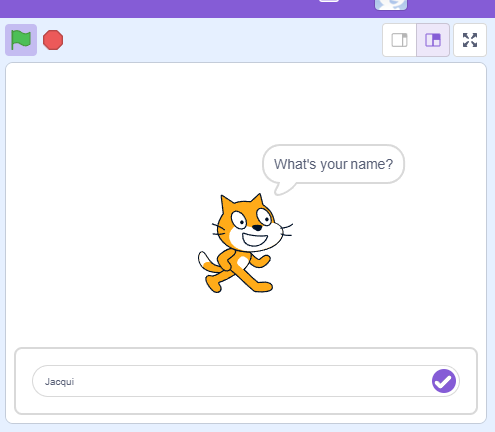
We can type our name here, but once we enter, nothing really happens. That’s because your name will be stored in a variable named answer. Let’s drag the say hello block in the Looks section once again, and this time under the Sensing section, we will drag answer into the say block.

Run the program again, and once you type your name in and press enter, the cat should repeat back your name to you. We’re almost there, but we want to hear something like “Hello, Jacqui” instead of just “Jacqui”. Luckily for us, we can use the join button in the Operators section! We replace answer with a combination of “Hello, “ and answer:
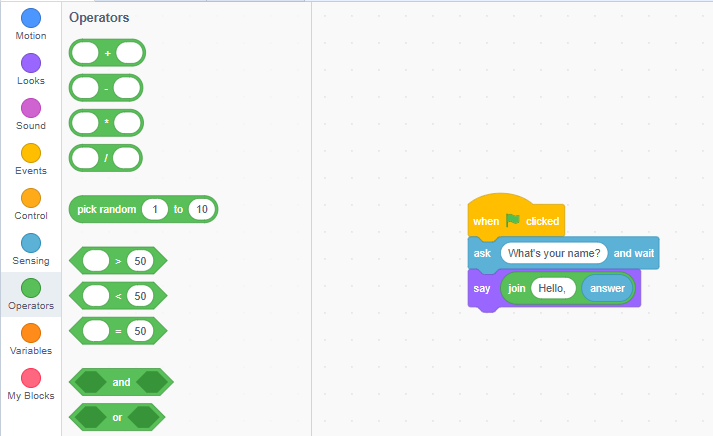
Run it again, and you should get something like this:
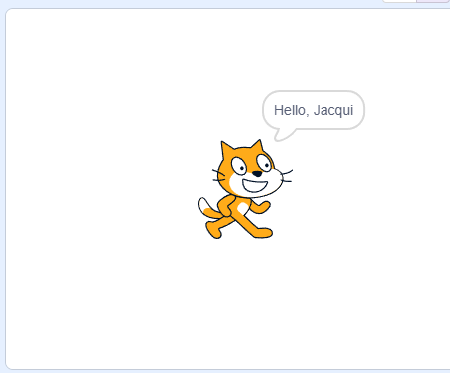
Awesome! Let’s do one final step!
Playing with Text to Speech
At the bottom of the left column, there should be a purple button. Click on it, and then click on Text to Speech.

Move the join block from the say block to inside the speak block. Then remove the say block by dragging it to the left (where it came from) and replace it with the speak button. You should get something like this:
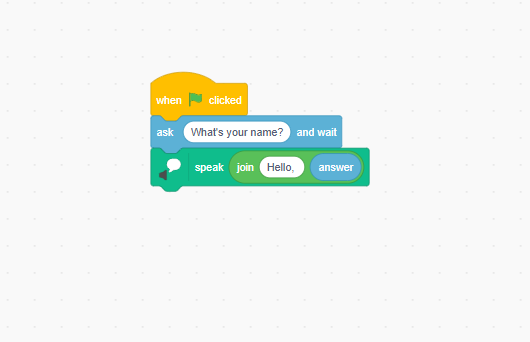
Run the program again, and you should hear the cat say your name.