
Variables - Containers for Data
Python ·What is Python?
Python is a programming language we can use to communicate with computers.
Commonly used for:
- Data Science
- Research
- Machine Learning/AI
- Math
- Engineering
How Python Works with Your Computer
When you write Python code, here’s the journey it takes:
- You write Python code → like
print('Hello!') - Python Interpreter → reads your code line by line
- Bytecode → converts your code to computer language
- Your Computer → uses its memory, processor, and screen to make your program work!
Variables: Your Code’s Storage Boxes
What are Variables?
Think of variables like labeled storage boxes! Just like you might have a box labeled “Hair Ties” that contains your hair ties, variables are labeled containers that hold information in your code.
Real Life Example:
- Box labeled “Favorite Songs” → Contains your Records/CDs
- Python variable
favorite_song = "jealousy jealousy by Olivia Rodrigo"
Creating Variables in Python
name = "Anna"              # Box labeled "name" contains "Alex"
age = 15                   # Box labeled "age" contains 15
likes_coding = True        # Box labeled "likes_coding" contains True
print(name)                # Look inside the "name" box and show what's there
Key Things to Remember
- Variables store information - like your phone stores contacts
- You can change what’s inside - update your status, change your profile pic
- Use descriptive names -
favorite_coloris better thanx - No spaces in variable names - use underscores:
favorite_movie
Updating Variables 🔄
Just like you can empty a storage box and put new things in it, you can update variables:
mood = "excited"    # Start excited
mood = "tired"      # Now you're tired
mood = "happy"      # Back to happy!
Types in Python
These storage boxes can contain different types of items. Your name would be a String in python. The $2.35 you paid for that bodega cola would be a Number.
String: a sequence of characters contained in quotes Examples:
hello_world = "Hello, World!"
password = "ella1234!@#$"
Number: a numerical value, can be negative positive or decimal Examples:
the_kosciusko_school = 234
Microbit Name Badge Activity 🏷️
Navigate to https://makecode.microbit.org/ and click on the purple “New Project” button. Set your language to python in the top menu bar.
First let’s try using a variable to store our name. Let’s call the variable “name”. Inside name, we will store the text (called a string in python) which will have our name.
- To set a variable, write the variable name
name, use the assigment operator=and the data you want in the variable"Ella" - Let’s define the main function where all our code will live (which should already be there when you open a new editor in MakeCode Microbit.
def on_forever():. - Now let’s print the variable’s data to the microbit display:
basic.show_string(name) - Now let’s call the function to make our program run:
basic.forever(on_forever). This will run everything we defined on line 2 and 3.
Basic Version
name = "Ella"
def on_forever():
    basic.show_string(name)
basic.forever(on_forever)
Run your code in the emulator: Press the play button on top of the microbit simulator. Run your code on your microbit: Download the file and drag and drop it to your microbit.MicroBit User Guide has more instructions. Make sure you follow the ones for “MakeCode” not “Python”. Output: Ella
Math with variables
Python has functionality to do basic mathematical operations. Here’s how you would do basic math operations with python:
+ for Addition
- for Subtraction
/ for Division
* for Multiplication
** for Exponent
So
print(1+2)
would print 3 to the console.
You can also use variables in mathematical operations. If your variables have numbers, then + will add them.
number_of_sisters = 1
number_of_brothers = 2
number_of_siblings = number_of_sisters + number_of_brothers
What do you think number_of_siblings is? Take a guess and find out if you’re right by printing it!
Answer
3
“Math” With Strings
What would happen if you had two variables that were strings and you used + on them?
number_of_sisters = "One"
number_of_brothers = "Two"
number_of_siblings = number_of_sisters + number_of_brothers

def on_forever():
   basic.show_number(number_of_siblings)
basic.forever(on_forever)
Well the + addition operator in python will “concatenate” or join two strings into one bigger string. So the result here would be “OneTwo”
What if we add strings and numbers together?
number_of_sisters = 1
number_of_brothers = 2
number_of_siblings = number_of_sisters + number_of_brothers

def on_forever():
   basic.show_number("Total Siblings="+number_of_siblings)
basic.forever(on_forever)
In this case, python converts the number to a string and then concatenates the strings together.
Pausing
Generally programs execute each instruction right after the previous one. As a programmer, you might want to introduce gaps between events. Most programming languages have some functionality to do this. For MakeCode Python, this is basic.pause().
Here’s a snippet from the documentation: Pause: Pauses the program for a duration of the number milliseconds you say. You can use this function to slow your program down. Example:
basic.pause(30) # pauses program for 30 milliseconds
Exercises
Once you have solved it, click to expand for the answer.
*[Math with Numbers]* Create variables for the number of siblings, pets and parents/guardians that live with you. Use this to display your family size.
from microbit import *
name = "Ella"
age = 15
school = "Lincoln Middle"

while True:
    display.scroll(name)
    sleep(1000)
    display.scroll(str(age))
    sleep(1000)
    display.scroll(school)
    sleep(2000)
[Math with Strings] Create variables for this year (2025) and the year you were born. Use this to display your age.
name = "Ella"
siblings = 2
pets = 1
total_family = siblings + pets + 2  # +2 for parents
while True:
    basic.show_string("Total Family Members:")
    basic.show_string(str(total_family))
Documentation
How to read documentation
Documentation is like an instruction manual for a programing. Generally, all programming languages, libraries, APIs… will have docs. Goal: Show LED smiley face!
Main UI for MakeCode Microbit
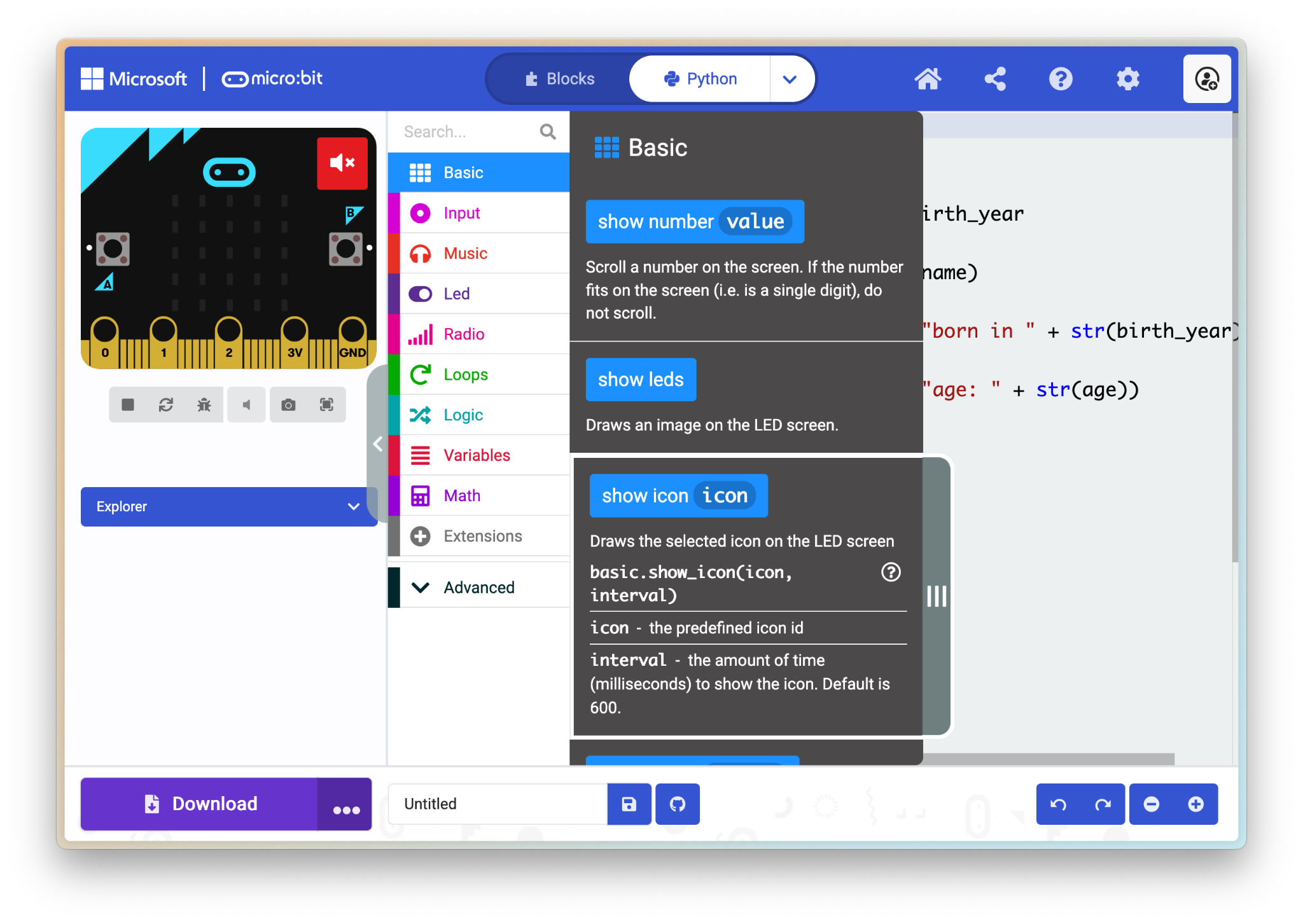
- Click on “Basic”
- Scroll until you find a function that can accomplish the goal. In this case, I scrolled until “show(icon)”.
- Click on the blue block to expand it for the function definition.
Function definition
For the scope of this tutorial, functions are blocks of code that do tasks. Let’s break down this definition:
basic.show_icon(icon, interval) # this is called a function signature
icon - the predefined icon id interval - the amount of time (milliseconds) to show the icon. Default is 600.
basicis the name of the class the function comes for. For the scope of this tutorial, it is used to sort functions into categories of uses.show_iconis the name of the function.iconandintervalare what we call parameters. we pass this into the function to customize the behavior and the result.
Finding examples
Try clicking on the question mark next to the function signature. If you scroll down a bit, there will be an example section you can use to help guide you how to use the function.
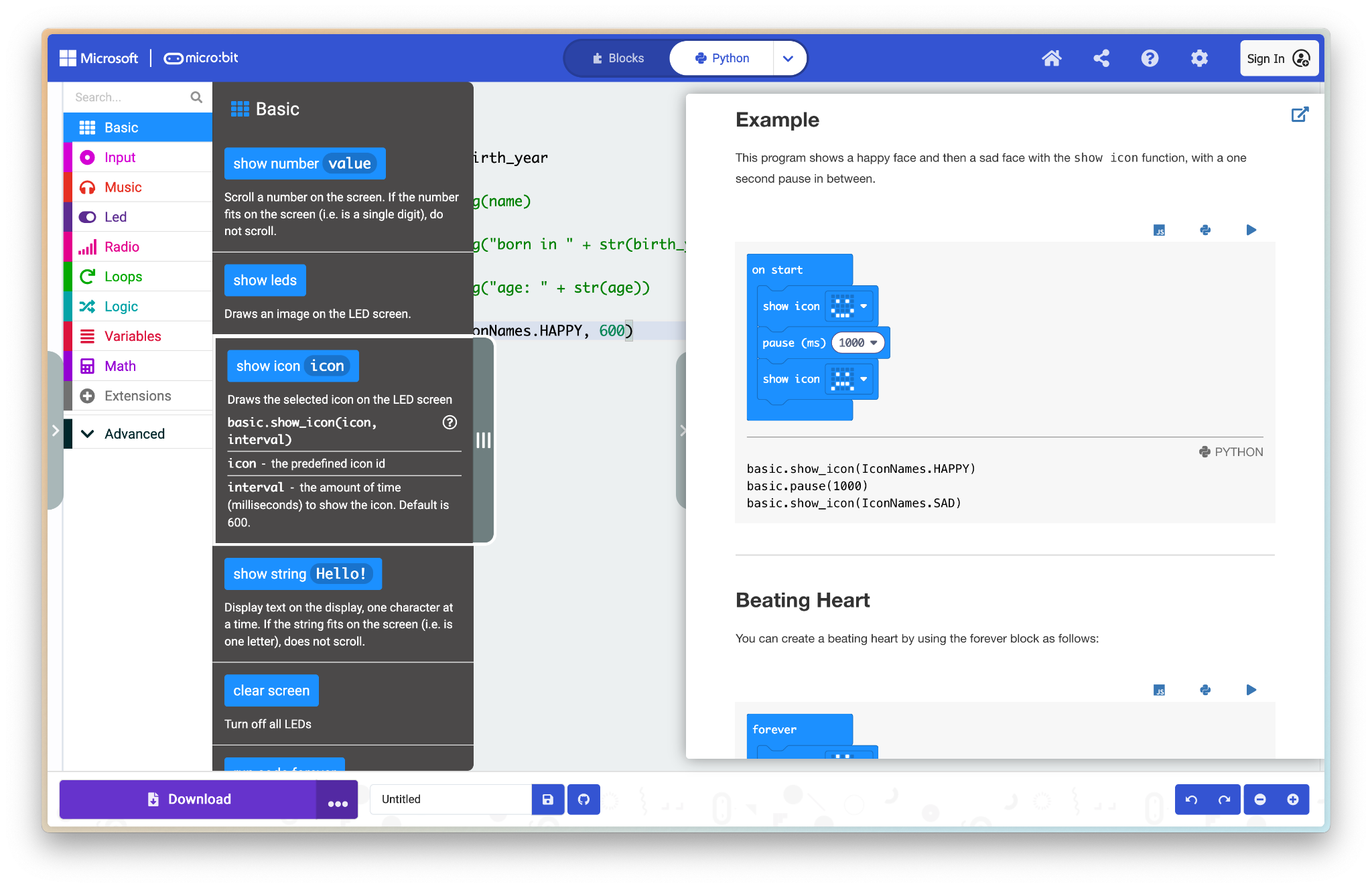
Using all this information, do you think you can acomplish the goal of showing the LED smiley face? Take a guess and find out if you’re right by printing it!
Answer
basic.show_icon(IconNames.HAPPY, 300)  # specify a different interval
basic.show_icon(IconNames.SAD)         # using default of 600
Exercises Part 2
- Add your favorite icon to your name badge.
- Use the documentation to show a custom LED image.